

One of Odoo's biggest strengths is the deep integration between its apps. By default, when a sales quote for a service (the Sales module) is accepted, the system can automatically create a new project or task in the Project module. That's a great feature, but what about situations where we need to kick off operational work before the customer even signs the contract?
We can schedule planned activities based on the expected closing date, but what if we want the trigger to be the act of dragging an opportunity to a given process stage?
Picture this situation: Your salesperson moves a sales opportunity in the CRM pipeline to the "Proposal" stage. At that moment, the technical team needs to prepare a detailed quote or preliminary action plan. How do you make sure this task gets created and assigned every single time, flawlessly and instantly?
This is where Automations come to the rescue!
What are Automated Actions in Odoo?
Automations are custom actions that are triggered based on some kind of trigger event.
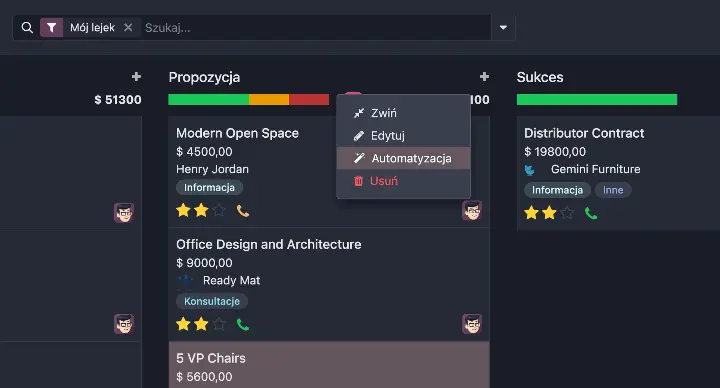
Fig. 1. To find the automations menu, click the icon next to the Stage you want to add an automation to (visible when you hover over the stage).
The trigger can be, for example, adding a tag, a webhook, or moving to a given stage (among many others). Actions can be, for example, updating a record, sending an SMS, or executing code.
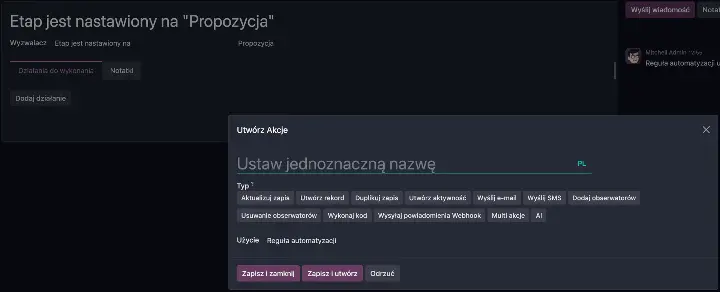
Fig. 2. The automation creation view for the "Proposal" stage.
A great many actions can be defined without any programming knowledge, but sometimes, when you need custom behavior, knowing how to code can be essential. Odoo lets us define source code that will be executed. This is a very powerful option.
Practical example: automatically creating a task, step by step
Our goal: When a Sales Opportunity (Lead) is moved to the "Proposal" stage, the system should automatically create a new task in a project called "Client Quotes." In this example, a simple piece of code will add a Task to an existing Project.
Step 1: Find the automations menu
In the Kanban view of the CRM module, hover over the header of the stage you want to add the rule to (in our case, "Proposal"). Click the gear icon, then select "Automations" from the menu.
Step 2: Configure the action
In the automation creation form, give it a name (e.g. "Create quote task") and choose the action type. In our case, since we want to create an entirely new record in a different app, we choose the "Execute Python Code" option.
Step 3: Add the code and save
Now for the most important part. Paste the code below into the "Code to Execute" tab. The code needed for this automation is just a few lines, and it looks like this:
# Wyszukaj projekt o konkretnej nazwie
project = env['project.project'].search([('name', '=', 'Wyceny dla Klientów')], limit=1)

# Jeśli projekt został znaleziony, utwórz nowe zadanie
if project:
    env['project.task'].create({
        'name': f"Przygotuj propozycję dla: {record.name}",
        'project_id': project.id,
        # Tutaj można dodać inne pola, np. przypisanie do użytkownika
        # 'user_ids': [env.user.id],
    })
# Jeśli projekt nie istnieje, wyświetl błąd
else:
    raise UserError("Nie znaleziono projektu 'Wyceny dla Klientów'! Upewnij się, że projekt istnieje.")
What's happening here?
project = env[...]- We search the system for a project named "Wyceny dla Klientów"if project:- We check whether it was foundenv['project.task'].create({...})- If so, we create a new record (task) in the project.task model'name': f"..."- We dynamically give the task a name, inserting into it the name of the sales opportunity (record.name) it originated from'project_id': project.id- We assign the new task to the ID of the project we found earlierelse: raise UserError(...)- If the project isn't found, the system will display an error message
And that's it! From now on, every time a sales opportunity is moved to the "Proposal" stage, a task will be instantly created for the right team, eliminating the risk of it being overlooked and speeding up the quote preparation process.
Important licensing information
Full Automations functionality, including executing Python code, is available in Odoo Enterprise (Custom license). In Odoo Community there's a similar "Automations" mechanism, but its capabilities may be more limited (if you can't find it in your system, check whether the base_automation module is installed).