
Odoo as a Warehouse Management System (WMS) - General Information
There are many warehouse management systems (WMS) out there, but Adapt IT bets on Odoo for this purpose because of:
- Quality and capability - Odoo is a system that allows for a high degree of configurability. You can define your own routes, rules, flows, and operations, and you get a labeling system and much more.
- Integration - the warehouse module is integrated with other modules, e.g. sales, purchasing, manufacturing.
- Cost - the Enterprise version is only €14.90 / user / month (all modules are included at this price; data as of 21.01.2026).
In this article I present the basic views and options of a warehouse management system built on Odoo. Odoo offers three standard warehouse logistics models out of the box:
- 1 step - simple "receive" operations. Good for simple warehouses. In practice this means that once goods are received, they're put directly on their destination shelf.
- 2 steps - receive, then transport. For a delivery, this reflects work like: unloading at the dock (goods stay in the receiving area), followed by transport to the storage location. After unloading, a list of transfer orders from the dock to the warehouse is created.
- 3 steps - receive, inspect, transport. Here you actually get control over quality checks. Once the received goods pass quality inspection, transfers to the warehouse floor are created. This is key for companies that need to comply with ISO standards or have strict requirements for supplier quality.
The descriptions above concern receiving goods, but analogous configurations are available for deliveries, shipments to production, and other operations. If this level of control isn't enough for you - you can freely modify and create your own transport rules.
Odoo lets you define arbitrary warehouse routes. That means you can set warehousing rules at any level of complexity. Routes and rules in Odoo let you define flows for products or product categories. Rules determine things like:
- What should happen to a product once it reaches location X.
- Where to source components from when they're needed at location Y.
The system then automatically creates the transport orders (intralogistics, transfers between warehouses, delivery, shipment to production, or others). That means you can order production of product XYZ, and the system will take care of creating the appropriate transport, manufacturing, and storage orders (or delivery directly to the customer, in the case of a made-to-order sale).
What Does the Warehouse Management Dashboard Look Like in Odoo?
Managing Warehouse Transfers - from the Office's Point of View
The main view used to manage and keep control over what's happening in the warehouse is the operations dashboard. It shows a tile for each type of operation (in Image 1 you can see, for example, Receipts, Manufacturing, etc.). For each tile you get a quick preview in the form of vertical columns (red, yellow, and green). This is simply a representation of the number of transfers.
- Red - operations that are overdue (scheduled date = the day before yesterday or earlier).
- Orange (not visible in Image 1) - operations from yesterday.
- Green - operations for today, tomorrow, or later.
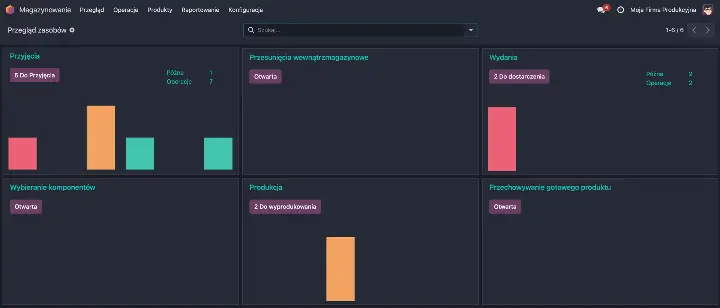
Image 1. View of the warehouse management dashboard - overview of all operations.
In Image 1 you can see an overview of all the operation types defined in our Odoo instance:
- Receipts - expected deliveries from vendors.
- Internal Transfers - movement of goods within the warehouse.
- Deliveries - shipments to customers or transfers to another warehouse.
- Pick Components - components issued to manufacturing (warehouse -> manufacturing).
- Manufacturing - goods currently being produced.
- Store Finished Product - transport orders for manufactured goods (manufacturing -> warehouse).
You can also create your own operations - they will appear as identical tiles on the dashboard. The ones defined here are the standard operations for a small warehouse with three-step controlled manufacturing (picking - manufacturing - warehouse). In addition, you can configure routes that include, among other things:
- Quality control.
- Issuing a component to a subcontractor.
- Transfers between warehouses.
The list of deliveries is also visible from the list view (a view meant for office staff). This gives you an always up-to-date overview of what's awaiting transport, what has shipped, and what's already ready for delivery. The list view looks like this:
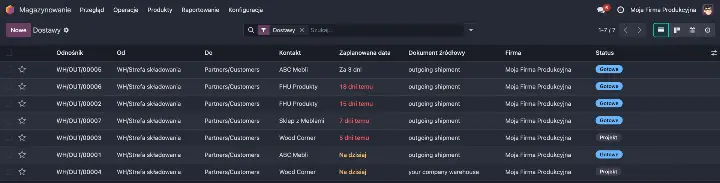
Image 2. Preview of the deliveries list.
To see a full overview of what, where, and when you're planning to transfer, you need to go to the list view. You can get to the operations list view by clicking:
- The "5 To Receive / Deliver / Produce" button - the list will contain transfers ready to be carried out.
- The red / orange / green column - you'll be taken to a list of transfers whose scheduled date corresponds to that column.
- The "Late" / "Operations" links - you'll be taken to a list of, respectively, overdue transfers and all operations of a given type.
Managing Warehouse Transfers - from the Shop Floor's Point of View
All transfer orders in the system are available in the module dedicated to warehouse staff - Barcodes. You can access it through a mobile browser or by downloading the dedicated app. All planned transfers are visible on the mobile device. This minimizes the risk of missing a shipment. That gives you full control and visibility into what's happening on the warehouse floor, right from the office.
If an order is important, you can star it - this will move that transfer to the very top of the list (on every view). It's a signal that it needs to be handled as a priority. By default, orders are sorted from oldest to newest. The warehouse worker has the list of transport orders in their work panel. Here's what the dashboard looks like on an Android device:

Image 3. View of the Barcodes app in a WMS built on Odoo. List of operations.
Transport operations are organized by operation type. For someone who handles deliveries to customers, only those specific operations matter. In the app above, you'd click "DELIVERIES." A list of operations will appear:

Image 4. List of items ready for delivery. Orders can come from the system (based on automatic routes) or be created manually.
Workflow
Odoo delivers the best standards for warehouse work. Products, warehouse locations, and deliveries - for each of these objects you can print a dedicated barcode label. This streamlines the work and provides another checkpoint against human error (there's no need for manual entry).
You can use any device with a camera or a professional barcode scanner to scan.
In Image 3 you can see the list of transfers. With a large number of orders, finding a specific one can be tedious. The delivery label includes a barcode - scanning that code while on the view from Image 3 will bring up that specific order. Opening that transfer shows you the list of products included in the operation. In the Odoo WMS Barcodes app it looks like this:

Image 5. Preview of the items that should be delivered in a specific order.
Now all that's left is to confirm that all the items for delivery have been collected - you can do this by scanning the barcode on each package. This gives you another checkpoint to confirm that the goods being shipped are exactly what the customer ordered.

Image 6. View of the scanner open on the phone - reading a location label.
Is a Warehouse Management System Built on Odoo the Right Solution for Your Company?
As you can see, Odoo isn't just a simple inventory-tracking program - it's a full-fledged WMS that scales along with your business. From simple "one-step" receipts, all the way to advanced routes with quality control and barcode support on the shop floor.
If you want to find out whether Odoo can handle the specifics of your warehouse - schedule a Needs Analysis. We'll talk through your logistics challenges and work out together whether Odoo is the right direction for your company.