

Odoo website builder
Odoo comes with many templates and predefined blocks used to build a page in drag-and-drop style. But what happens when your website design calls for an element that isn't available?
We can either edit the page's HTML code directly (after enabling developer mode), or write extensions to Odoo's standard views. The first solution carries a risk. When we update the database, the view template can get overwritten - and we lose our changes. That's why the correct solution is to add inheriting views, which extend the parent view (I already mentioned this in the post about changing the page template).
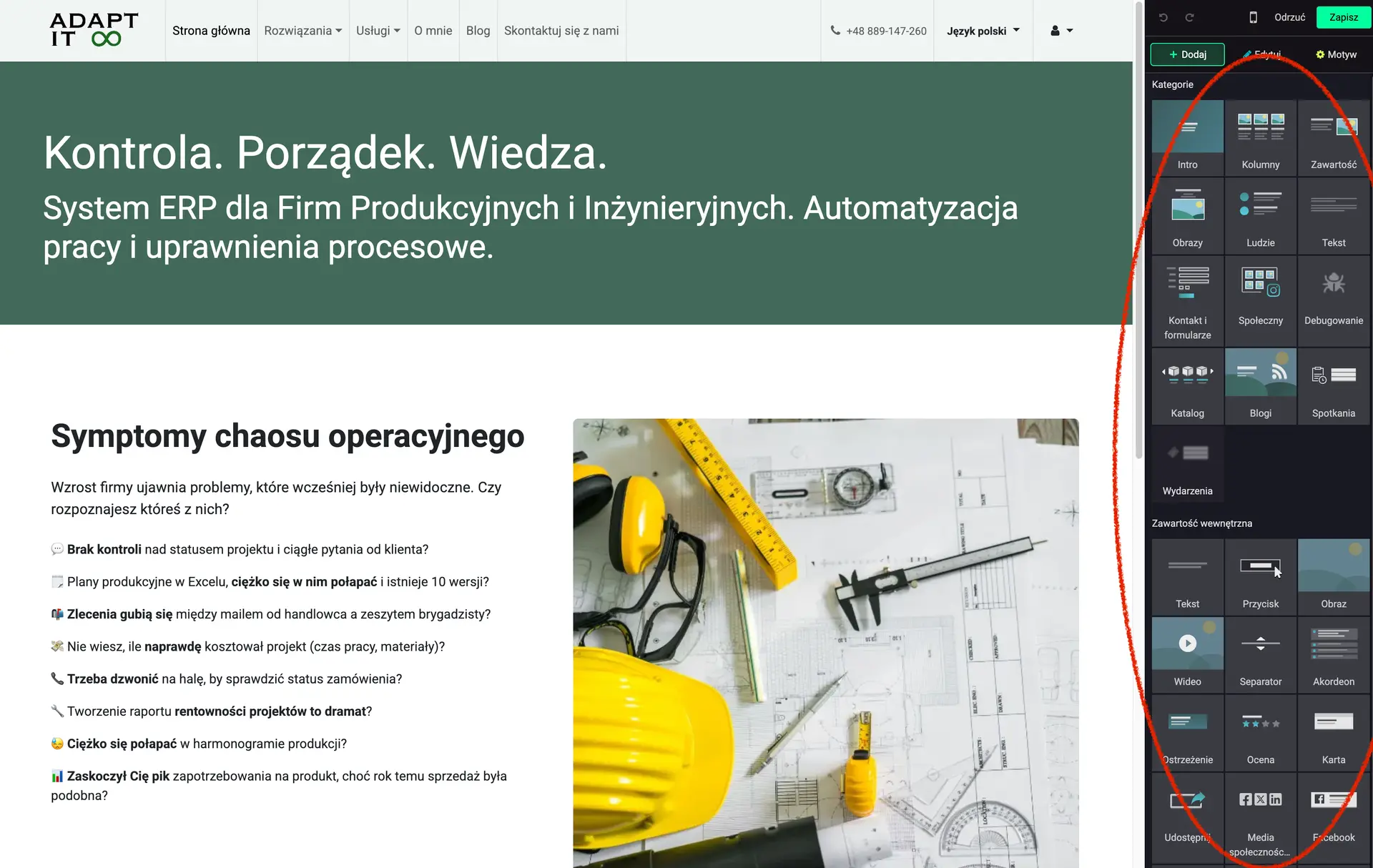
Image 1. A collection of snippets - blocks you can use to build a website.
If your website design calls for using the same element multiple times, across many subpages - Odoo lets you add it to the page builder's list. This lets you conveniently reuse that element by simply dragging and dropping it onto the page.
You can add such an element in two ways:
- Through the UI - by creating new extending views
- Through a data module - by creating a module that you then import into Odoo
As a developer, I always use the second option - mainly for version control. Importantly, such a module can be imported on On-Premise, .sh, and Online versions alike!
How to add an element to the "Inner Content" snippets in the Odoo page builder?
To add a new element to the selection panel, you need to:
- Create and define a new module
- Define the new element
- Extend the set of blocks
We create the new module following Odoo's standard structure. Here's what its complete structure looks like:
├── example_element
│   ├── __init__.py
│   ├── __manifest__.py
│   ├── static
│   │   └── src
│   │       └── img
│   │           └── wbuilder
│   │               └── example_element.svg
│   └── views
│       └── snippets
│           ├── options.xml
│           └── s_example.xml
example_element.svg - this is the thumbnail image displayed above the block's title
s_example.xml - contains the definition of the new element (point 2 from the list)
options.xml - extends the set of elements with the new "s_example" (point 3 from the list)
Contents of s_example.xml:
<?xml version="1.0" encoding="utf-8"?>
<odoo>
    <template
    id="s_example"
    name="Example of Reusable Block">
        <div class="o_snippet_drop_in_only">
            <p>
                ADAPT IT - Example!
            </p>
        </div>
    </template>
</odoo>
<?xml version="1.0" encoding="utf-8"?>
<odoo>
    <template
    id="s_example"
    name="Example of Reusable Block">
        <div class="o_snippet_drop_in_only">
            <p>
                ADAPT IT - Example!
            </p>
        </div>
    </template>
</odoo>
In the code above we define a QWeb template named "Example of Reusable Block" with the id s_example. Everything inside the template tag will be the body of our block. The div class o_snippet_drop_in_only specifies that this element can be dragged and dropped into other elements. In the resulting HTML code, this class is removed.
Contents of options.xml:
<?xml version="1.0" encoding="utf-8"?>
<odoo>

   <template id="snippets" inherit_id="website.snippets" name="Adapt IT - Snippets - Example">
      <xpath expr="//snippets[@id='snippet_content']/*[1]" position="before">
         <t
         t-snippet="example_element.s_example"
         string="My Block Element"
         t-thumbnail="/example_element/static/src/img/wbuilder/example_element.svg">
            <keywords>Example</keywords>
         </t>
      </xpath>
   </template>

</odoo>
<?xml version="1.0" encoding="utf-8"?>
<odoo>

   <template id="snippets" inherit_id="website.snippets" name="Adapt IT - Snippets - Example">
      <xpath expr="//snippets[@id='snippet_content']/*[1]" position="before">
         <t
         t-snippet="example_element.s_example"
         string="My Block Element"
         t-thumbnail="/example_element/static/src/img/wbuilder/example_element.svg">
            <keywords>Example</keywords>
         </t>
      </xpath>
   </template>

</odoo>
In the fragment above we add the previously defined element to the list of base blocks. example_element is the name of the root directory, and therefore of the module - hence t-snippet="example_element.s_example".
Once the module is ready, you need to compress it into a ZIP file and import it into Odoo. We import it by going to Apps, where we choose "Import Module". The new block is available in the editor right after the import finishes.
Here's the end result:
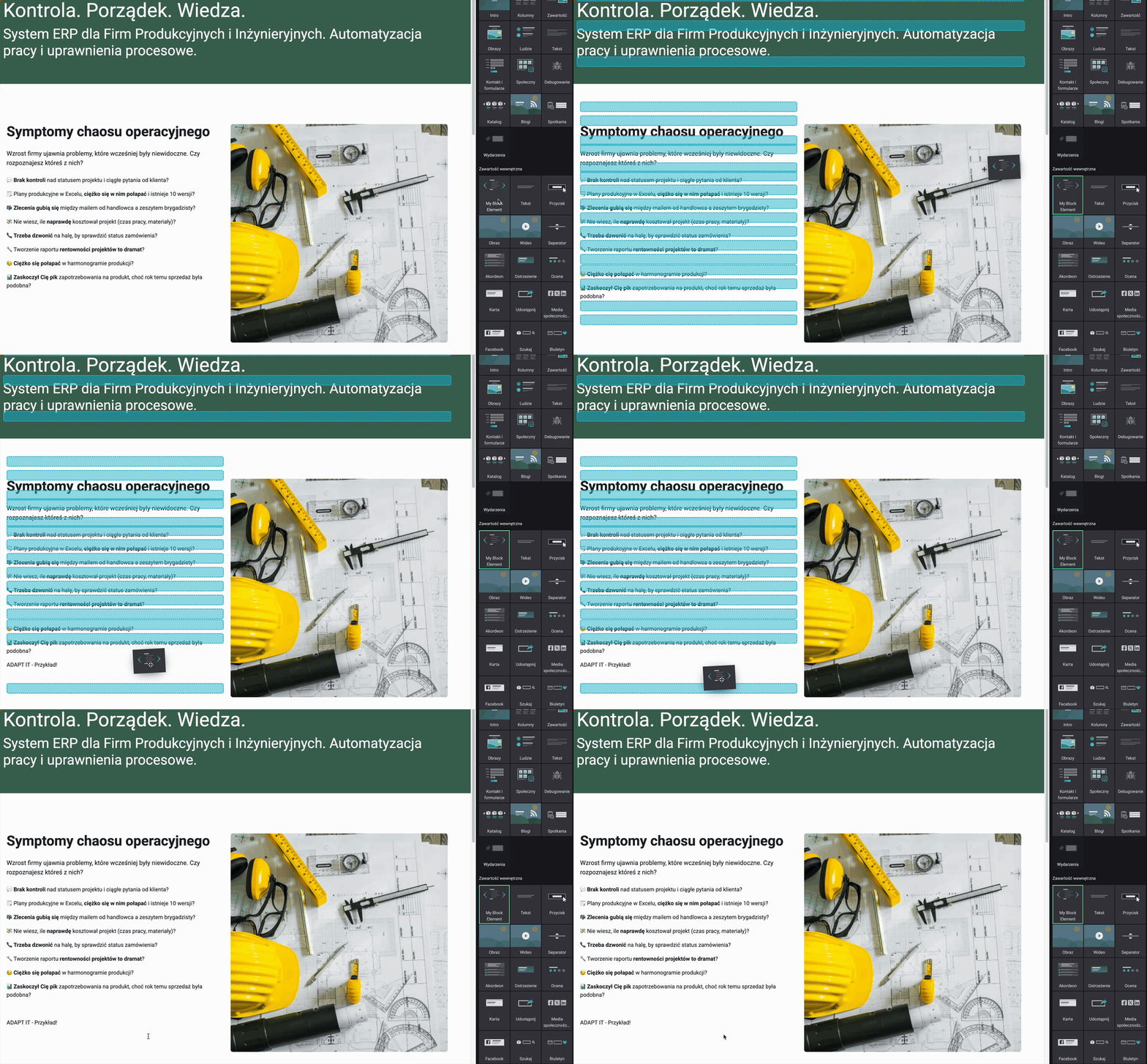
Image 2. Demonstration of the newly added block in action.