
Is it possible to change a page template in Odoo?
Odoo is a very large system.
One of its features is running a website. A page can be built in a simple way, using drag-and-drop building blocks. That's enough to build most web pages - the possibilities are genuinely extensive, and the whole process is dead simple.
Some pages, though - such as product pages in an online store - have limited configuration options. We pick one of the several available templates (during store configuration). This determines where the images will be placed and where the product description will go. We can build the description itself using drag-and-drop building blocks from the palette.
But what if we want to change the layout of the entire page? Is that even possible?
Yes, though it takes a bit more work and a basic understanding of programming. The process described below is one I used to change a product page. A large image didn't fit the services being offered. I wanted it to be a small icon on the same line as the title. Here's the end result:
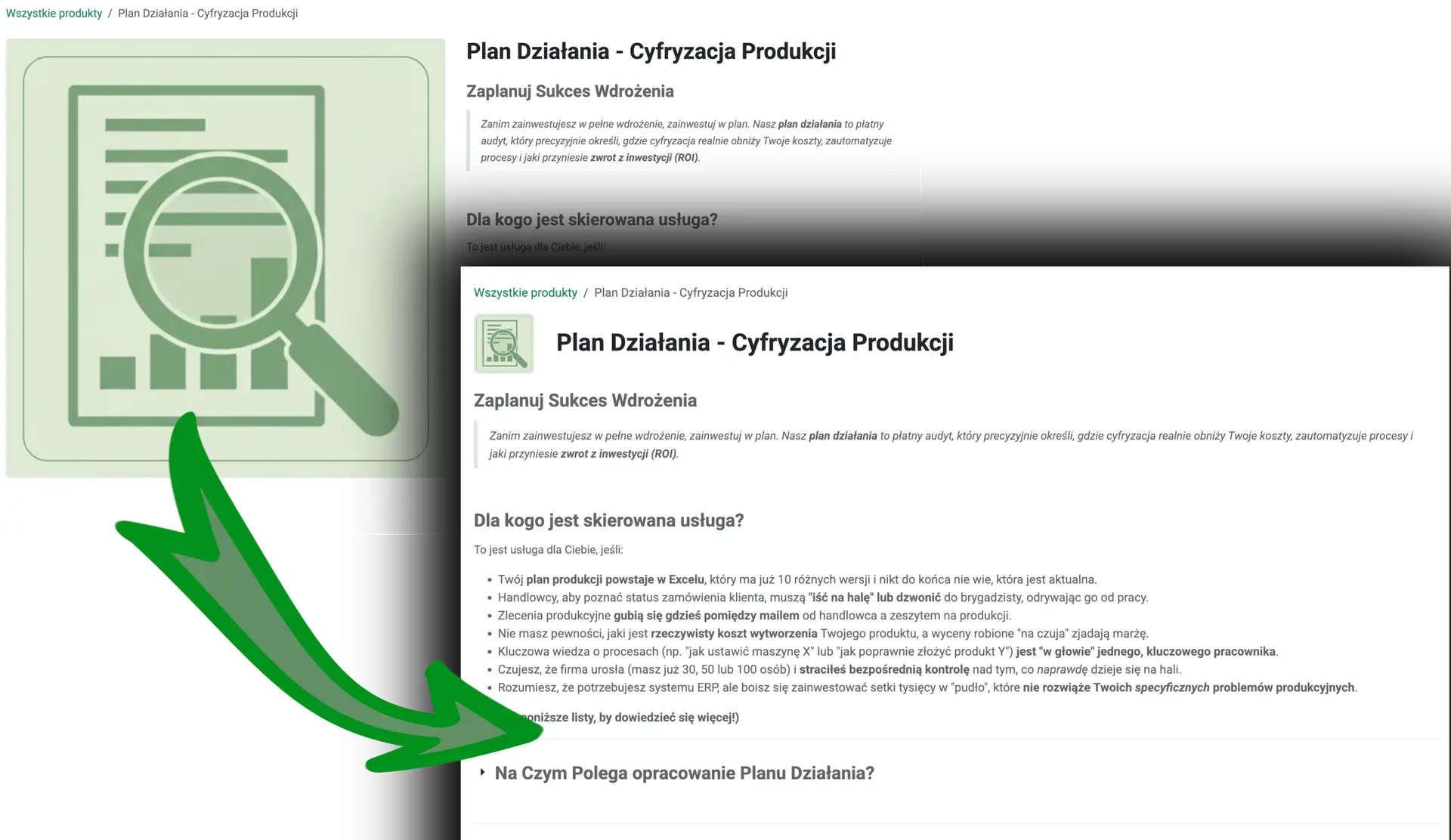
- Image 1. Odoo eCommerce product page - template layout change.
QWeb templates
To make this change, we need to update the template. This template is written as a QWeb view - the templating engine Odoo uses. Templates are stored in the database and rendered on demand (when the page is displayed). You can recognize them by directives specified as XML attributes, starting with "t-".
Where to find QWeb templates in Odoo?
The first task is to find the right template. To find it we need to enable developer mode: Settings -> Activate Developer Mode (at the very bottom).
In the top menu we click Technical -> User Interface -> Views. This shows a list of all available views. The one we're looking for is a QWeb-type view named Product (key - website_sale.product). Let's go to the view:
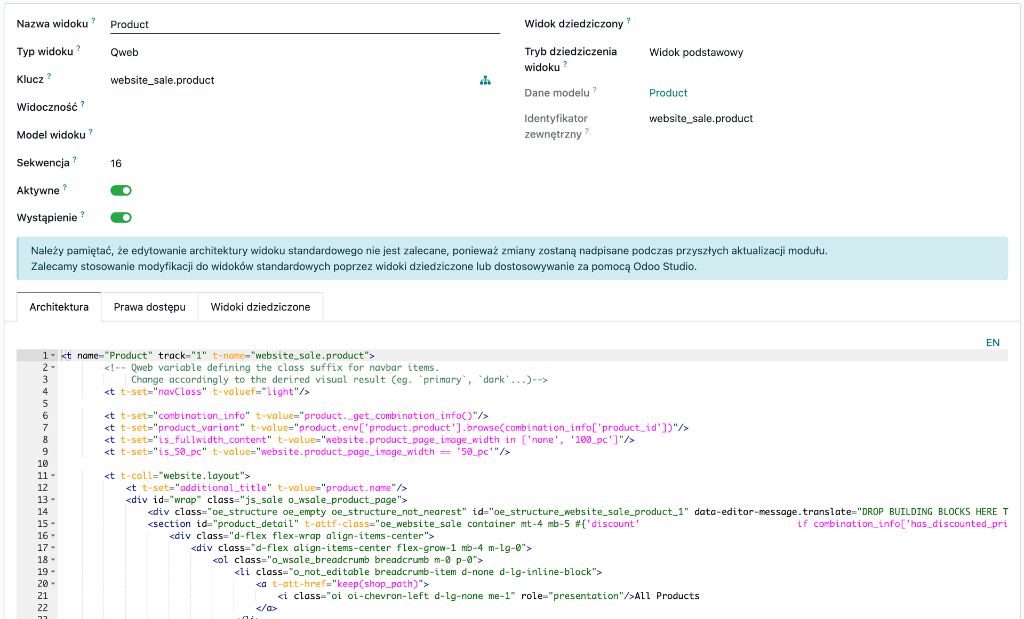
Image 2. Odoo - QWeb template view for Product.
Editing QWeb templates
This is the template defined for our product page. Changes to this template will be immediately visible on the product page - so you need to be careful. Since changing it directly would cause many errors resulting in the page not working correctly, changes should be made by extending the template.
Extending a template means creating a child template that defines changes to the parent template. This is called an inherited view. Thanks to this, we can freely manipulate the parent view. This is explained in the view inheritance documentation. The most important thing, though, is that we don't have to overwrite the original.
Adding a child view has several advantages:
- We can disable our add-on at any time
- If there's an error - the child view simply won't be applied (the main view keeps working)
- We have more control - there can be multiple child views
- The view won't be overwritten during a database update (the main view can be)
Inherited views in QWeb
To see the child views of the product page, on the view record we go to the "Inherited Views" tab.
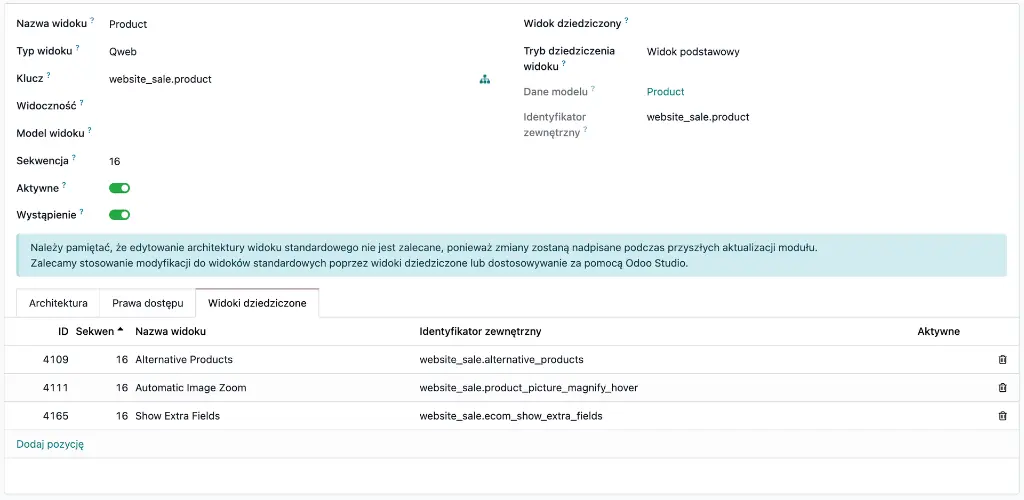
Image 3. View of the QWeb view record for the product, with inherited views.
In Image 3, you can see that extending view functionality through child modules is standard practice. All the child views visible in the screenshot were added by Odoo itself when the system was installed.
Extending the main view
To customize our view, we need to add a new child view. We do this by clicking "Add a line". A creation wizard opens:
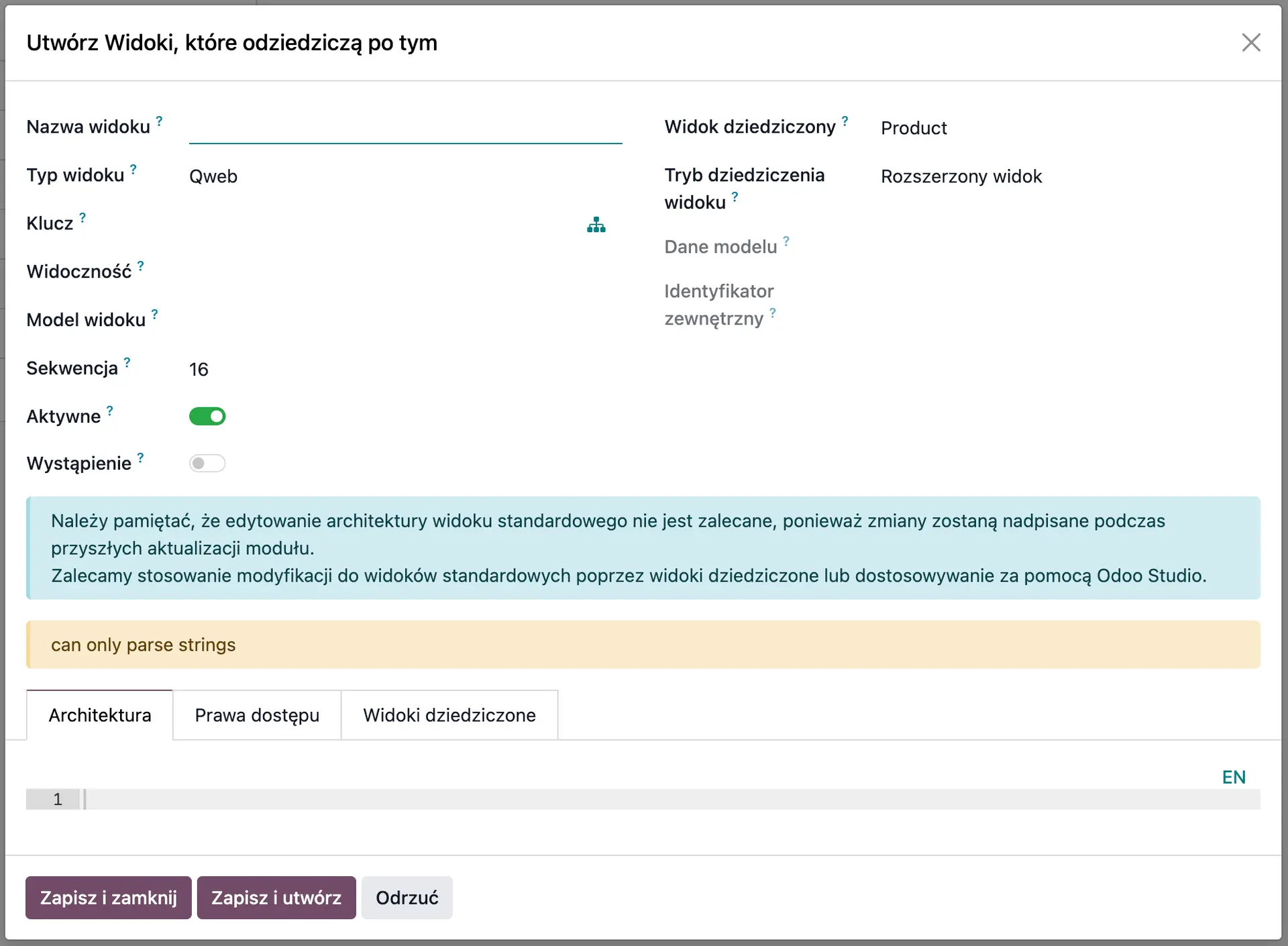
Image 4. Wizard for an inheriting view - Odoo QWeb template.
Now all that's left is to give it an easily searchable name and fill in the "Architecture" field. In this field we define what changes we want to make to the parent View (specification documentation). If there's an error in the new template, Odoo returns an error message when you try to save. The message tells you where the error is.
In this article I showed you how to edit a template. I present and explain the architecture code and technical details in the technical post on QWeb template inheritance (you'll find the full template code there).